
How to Connect Claude with WordPress to Automate Your Work
Introduction
Imagine being able to tell an AI assistant to write a blog post, update your site settings, manage your media, or create new pages — and it just does it, instantly, on your live WordPress website. No copy-pasting. No logging into wp-admin. Just a simple conversation.
That’s exactly what’s possible when you connect Claude AI with your WordPress website using MCP (Model Context Protocol). In this post, I’ll walk you through what MCP is, how to set it up, and the powerful automations you can run once it’s connected.
What is MCP (Model Context Protocol)?
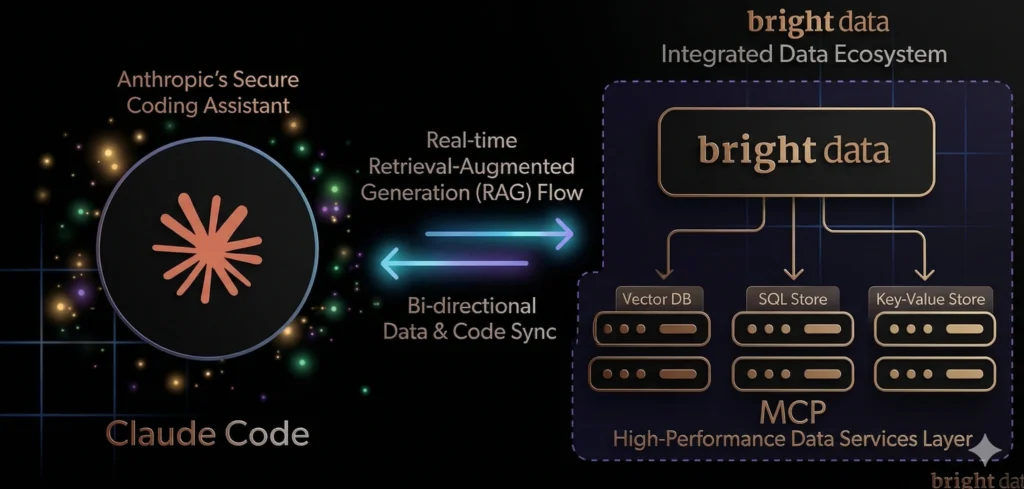
MCP stands for Model Context Protocol — an open standard that allows AI models like Claude to connect with external tools, apps, and services. Think of it as a bridge between Claude’s intelligence and your real-world software.
With MCP, Claude can:
- Read and write data from external systems
- Execute actions on your behalf
- Interact with APIs without you writing any code
- Automate repetitive tasks through simple conversation
MCP is built into Claude Desktop — the desktop application by Anthropic — which is where you can configure and manage your MCP server connections.
What is WordPress MCP?
The WordPress MCP plugin (by Automattic) adds an MCP-compatible interface to your WordPress site. Once installed, it exposes a set of tools that Claude can call — like creating posts, updating pages, managing media, and changing site settings.
This means Claude can directly interact with your WordPress database through a secure, structured API — making it your personal WordPress AI assistant.
Step-by-Step: How to Connect Claude with WordPress
Step 1 — Install the WordPress MCP Plugin
Go to your WordPress dashboard → Plugins → Add New and search for “WordPress MCP” by Automattic. Install and activate it. This plugin adds the MCP endpoint to your WordPress site that Claude will communicate with.
Step 2 — Generate a WordPress Application Password
Claude needs secure access to your WordPress site. To do this:
- Go to Users → Profile in your WordPress dashboard
- Scroll down to Application Passwords
- Enter a name like “Claude MCP” and click Add New Application Password
- Copy the generated password — you’ll need it in the next step
Step 3 — Install Claude Desktop
Download and install Claude Desktop from claude.ai/download. This is the desktop app that supports MCP connections. The web version (claude.ai) does not support local MCP servers.
Step 4 — Configure the WordPress MCP Server in Claude Desktop
Open Claude Desktop → go to Settings → Developer → Edit Config. Add the following configuration:
{
  "mcpServers": {
    "wordpress-mcp": {
      "command": "npx",
      "args": ["-y", "@automattic/mcp-wordpress-remote@latest"],
      "env": {
        "WORDPRESS_SITE_URL": "https://yourwebsite.com",
        "WORDPRESS_USERNAME": "your_username",
        "WORDPRESS_APP_PASSWORD": "your_application_password"
      }
    }
  }
}
Replace the values with your actual site URL, WordPress username, and the application password you generated in Step 2.
Step 5 — Restart Claude Desktop & Start a New Chat
Save the config, restart Claude Desktop, and open a new chat. MCP tools are loaded at the start of each session. You should now see the WordPress MCP server listed as “running” in your Developer settings.
What Can You Automate with Claude + WordPress?
Once connected, the possibilities are huge. Here are some powerful things you can do just by chatting with Claude:
Content Creation
- “Write and publish a blog post about [topic]”
- “Create a draft post with SEO-optimized content for the keyword [keyword]”
- “Update the excerpt of my latest post”
Page Management
- “Create a new Services page with this content…”
- “Update the About page with my new bio”
- “Set the Contact page as a draft”
Site Settings
- “Change my site tagline to…”
- “Update my admin email address”
- “Set the timezone to Asia/Kolkata”
Media Management
- “Update the alt text for all images missing it”
- “Change the title of this media item”
Site Auditing
- “List all my active plugins and check for updates”
- “Show me all inactive plugins”
- “What theme am I using and what version is it?”
Why This is a Game-Changer for Freelancers & Website Owners
As a freelancer or WordPress website owner, you likely spend hours on repetitive tasks — writing content, updating pages, managing settings. With Claude + WordPress MCP, you can cut that time dramatically.
Instead of logging into wp-admin every time you need to make a change, you simply tell Claude what you want. It understands context, writes intelligently, and executes actions on your live site — all in one conversation.
This is especially powerful for:
- Freelance web designers managing multiple client sites
- Content creators who want to publish faster
- SEO professionals who need to update meta data and content at scale
- Small business owners who don’t have a developer on call
Final Thoughts
Connecting Claude with WordPress via MCP is one of the most powerful productivity upgrades you can make for your website workflow. It turns a simple AI chat into a full-featured WordPress assistant that can read, write, and manage your entire site.
If you’d like help setting this up for your WordPress website, feel free to get in touch — I’d be happy to walk you through the process!
Written by Lokesh — Freelance Web Designer & SEO Expert in Delhi NCR. Helping businesses grow online with smart WordPress solutions.
